A volume is a disk you can attach to a cloud server, detach and attach again to another one. Use volumes for data that should outlive a server, such as files or a database. Volumes are billed by the GB-hour from the moment they’re created, attached or not.
Open Volumes
- Open Infrastructure in the side menu.
- Select Volumes, under Storage & Backups.
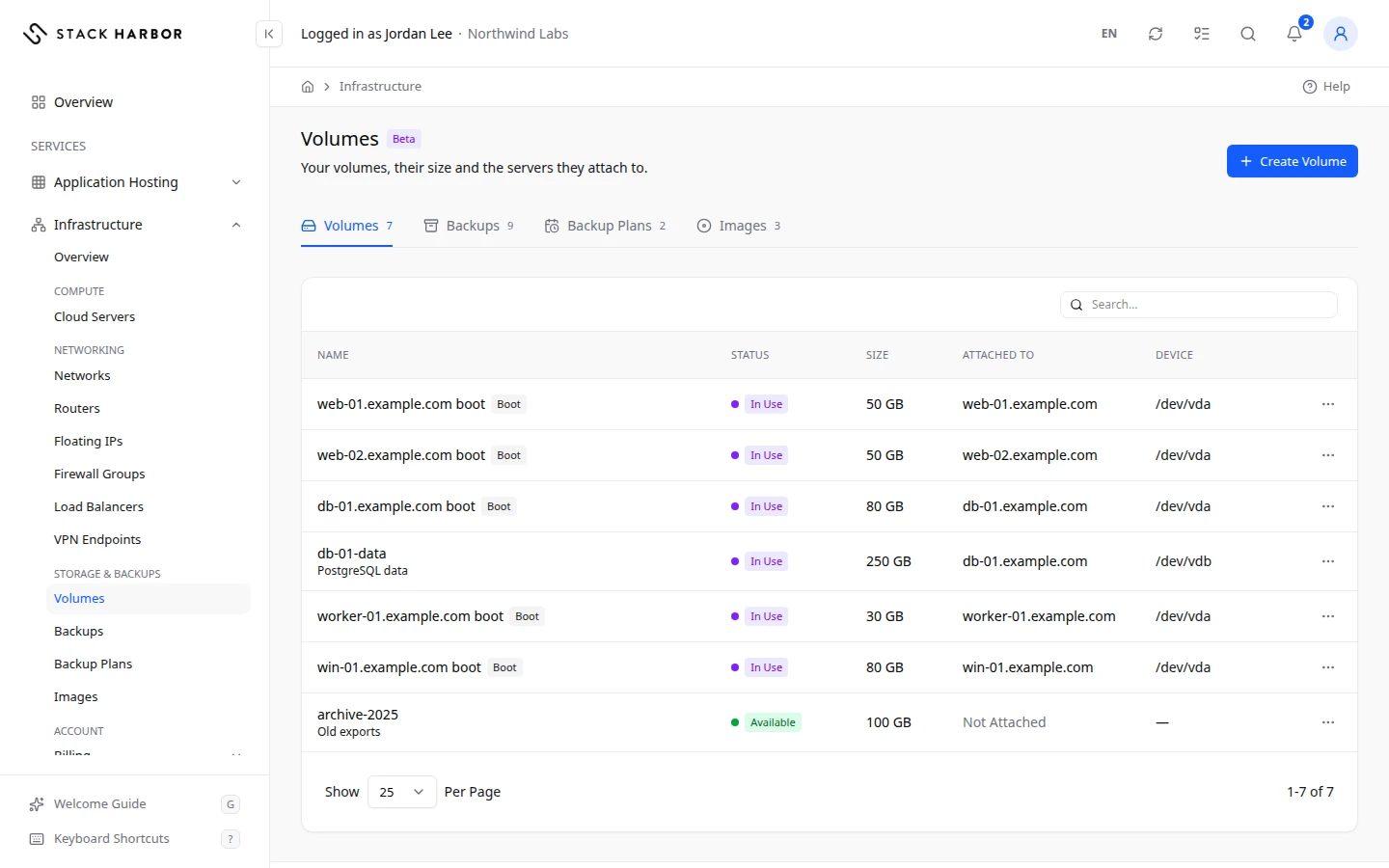
The page has three sections: Volumes, Backups and Backup Plans. This page covers Volumes. See also Back up and restore servers and volumes and Set up a backup plan.
Read the list
Each row shows Name, Status, Size, Attached To, Device and ID. Boot marks a server’s boot volume. Not Attached means the volume is on no server. A volume with no name of its own reads Boot Disk of web-01, Disk 2 of web-01, or Volume followed by the first 8 characters of its ID.
The status tells you what the volume is doing:
- Available means it is ready and not attached.
- In Use means it is attached to a server.
- Creating, Attaching, Detaching, Extending, Backing Up, Restoring or Deleting mean a change is in progress.
- Error means the last change failed. Try again, or open a support ticket.
Use Search… to find a volume.
Create a volume
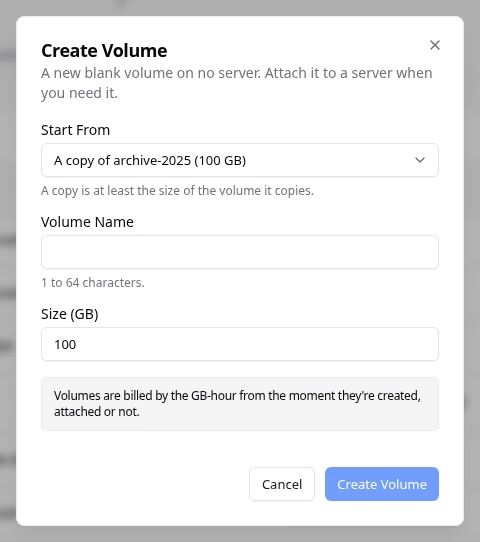
- Select Create Volume.
- Under Start From, keep An Empty Volume, or choose a copy of one of your volumes. A copy starts at that volume’s size and can’t be smaller.
- Type a Volume Name (1 to 64 characters) and a Size (GB).
- Confirm. You see Volume Create Requested.
The new volume is on no server. It is blank, or a copy of the volume you chose.
Attach it to a server
- Open the volume’s row menu and select Attach to Server.
- Under Server, choose the server.
- Confirm. It appears on the server as a new disk.
- Inside the server, format the disk and mount it.
To detach it later, unmount it on the server first, then select Detach. Its data stays on the volume.
Other actions
The row menu also has:
- Open Details, the volume’s own page. See Manage a volume.
- Rename Volume. Nothing on the disk changes. A boot volume’s name can’t be changed.
- Extend Volume. A volume can only grow. Grow its filesystem from the server afterwards. See Manage a server’s storage.
- Delete Volume. Type the volume’s name to confirm. Its backups are kept. This can’t be undone.
The volume’s details page
Each volume has its own Volume Details page, with every fact about the disk, its attachment, its backups and its disk activity. See Manage a volume.
If something goes wrong
- This volume is busy. Try again when it’s finished.
- Too many changes in a short time. Wait a moment and try again.
- Volume Not Found means the volume may have been deleted.
- We didn’t hear back, so the volume may already exist. Try Again is safe: it can’t make a second one.
Fields and statuses
What each item on this page means, what it does and how to read it.
- Name Column
-
What it is. The volume’s name.
How to read it. Boot marks a server’s boot volume.
- Boot Disk of web-01 Field
-
What it is. The name shown for a volume that has no name of its own.
How to read it. It reads Boot Disk of <server>, Disk 2 of <server>, or Volume followed by the first 8 characters of its ID. Rename the volume to give it a name of your own.
- Status Column
-
What it is. What the volume is doing now.
How to read it. See the statuses below.
- Size Column
-
What it is. The volume’s size.
How to read it. In GB. Billed per GB per hour, attached or not.
- Attached To Column
-
What it is. The server the volume is attached to.
How to read it. Not Attached means it is on no server.
- Device Column
-
What it is. The disk’s name inside the server, for example /dev/vdb.
- Boot Status
-
What it is. This volume is a server’s boot disk.
How to read it. Its name can’t be changed.
- Not Attached Status
-
What it is. The volume is on no server.
What it does. It is still billed.
How to read it. Attach it to a server, or delete it if you no longer need it.
- Available Status
-
What it is. The volume is ready and not attached.
How to read it. You can attach it to a server.
- In Use Status
-
What it is. The volume is attached to a server.
- Creating Status
-
What it is. The volume is being created.
How to read it. Wait a moment.
- Attaching Status
-
What it is. The volume is being attached to a server.
How to read it. Wait a moment.
- Detaching Status
-
What it is. The volume is being detached.
How to read it. Wait a moment.
- Extending Status
-
What it is. The volume is growing to its new size.
How to read it. Grow its filesystem from the server afterwards.
- Backing Up Status
-
What it is. A backup of the volume is being taken.
How to read it. Wait until it ends.
- Restoring Status
-
What it is. A backup is being restored into the volume.
How to read it. Wait until it ends.
- Deleting Status
-
What it is. The volume is being deleted.
- Error Status
-
What it is. The last change to the volume failed.
How to read it. Try again, or open a support ticket.
- Volume Name Field
-
What it is. The new volume’s name.
How to read it. 1 to 64 characters.
- Size (GB) Field
-
What it is. The new volume’s size, in GB.
What it does. It is billed per GB per hour from the moment it is created.
How to read it. A volume can grow later, never shrink.
- Server Field
-
What it is. The server to attach the volume to.
What it does. The volume appears on it as a new disk.
How to read it. Format and mount it inside the server.