The Networking tab of a server shows how it connects. A network interface is the server’s connection to one network. Each interface has one or more IP addresses. Reverse DNS is the name returned when someone looks up an address, which mail servers often check.
Read the tab
- Open the server’s page, then the Networking tab.
- Network Interfaces lists each interface with Network, Addresses, Firewall Groups and Status. The interface marked Primary carries the server’s main address.
- IP Addresses lists every address with Address, Type, Subnet and Reverse DNS.
- The floating IP card shows Floating IPv4 and Floating IPv6 when the server has a floating IP, or This server has no floating IP. See Assign a floating IP.
Port Security Off on an interface means its network doesn’t apply firewall groups. Traffic on it is not filtered.
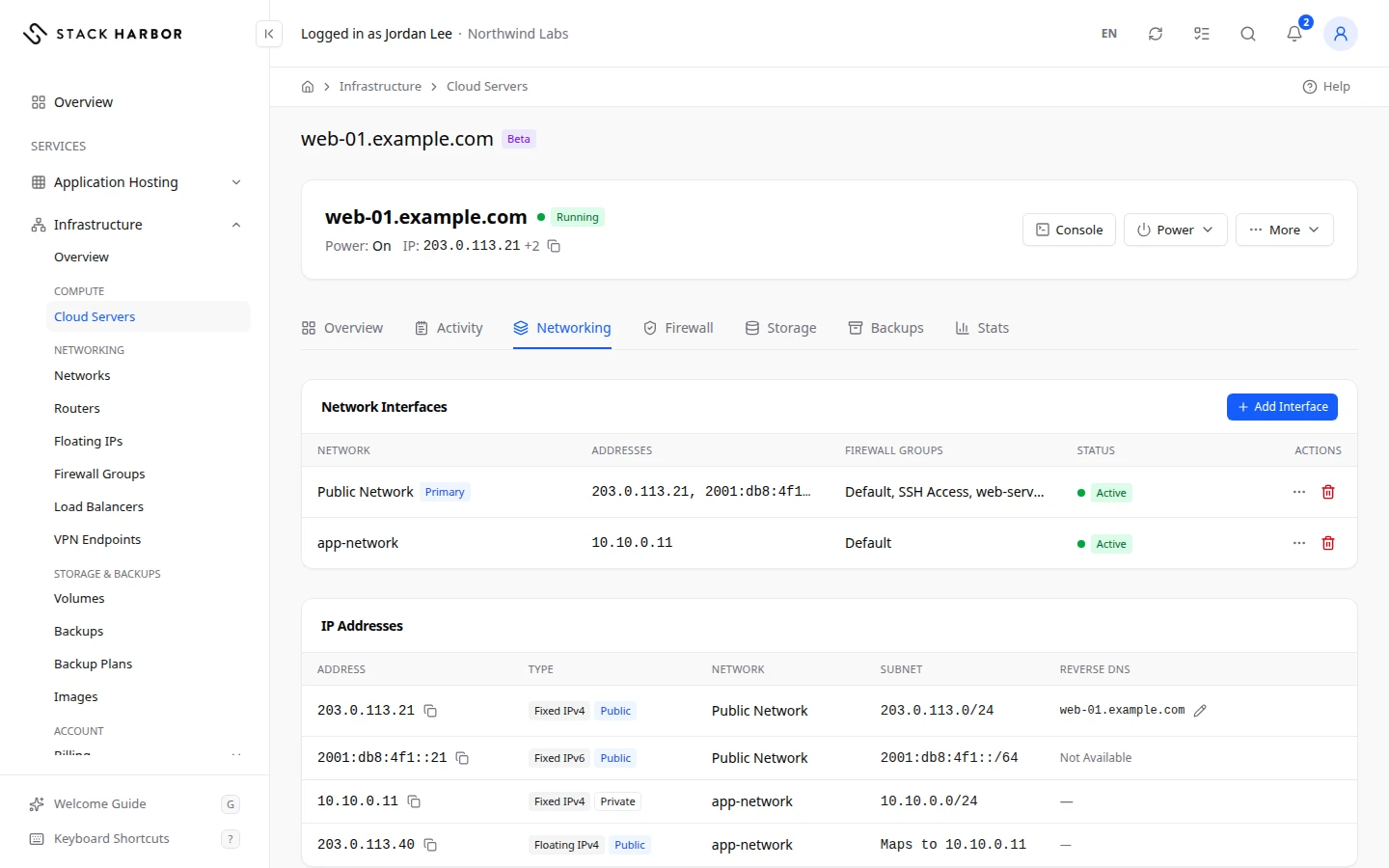
Add an interface
- Select Add Interface.
- Under Choose a Network, pick a network. The server joins it with a new address from its IPv4 subnet.
- Confirm.
You see Interface Requested. The server may need its network settings refreshed to use the new interface. If the button says No Other Network to Add, the server is already on every network. To create one, see Create a network.
Remove an interface
- Select Remove Interface on its row.
- Confirm. Its addresses are released, and the server loses its connection to that network.
A server needs at least one network interface, so you can’t remove the last one.
Change an interface’s addresses
Open the address menu on an interface row:
- Add Address gives the interface one more address. Configure it in the server’s operating system to use it. A public IPv4 address is billed by the hour until you remove it, and counts against your account’s IPv4 limit.
- Remove Address takes one address off. The server stops receiving traffic for it.
- Share an Address lets this interface also send from an address another of your interfaces holds on that network. Failover tools such as keepalived need it.
- Stop Sharing ends that.
Set reverse DNS for an address
- In IP Addresses, select Edit PTR Record beside the address.
- In PTR Value, type a full host name, for example mail.example.com. Use Server Hostname or Use Default Name fills it for you.
- Save. You see PTR record saved.
Saved, Not Live Yet means the change is saved but isn’t in DNS yet. Reverse DNS Not Confirmed means the name doesn’t point back to this address. Add a matching A or AAAA record at your DNS provider.
If something goes wrong
- Available While the Server Is Running or Stopped means the server is busy. Wait for the current action to end.
- Names under a Stack Harbor domain can’t be used. Pick a name on your own domain.
- If you see too many reverse DNS changes, wait the minutes shown, then try again.
Manage the server’s firewall groups
A firewall group is a set of rules that say which traffic may reach a server. The Firewall tab shows the groups on one server and lets you add, remove or edit them. To manage groups for all servers at once, see Create a firewall group.
How firewall groups work
Firewall groups only allow traffic. Inbound traffic that no rule allows is dropped, replies to allowed traffic get through, and every change applies at once. A new server blocks all inbound traffic except the SSH or RDP address you chose at deploy.
Read the tab
- Open the server’s page, then the Firewall tab.
- The table lists each group on the server with Firewall Group and Rules. Expand a group to see its rules.
- Each rule shows Direction (Inbound or Outbound), IP Version, Protocol, Ports, Source or Destination and Description.
- A badge says whether you can change the group. Editable means it was created in Lighthouse. Read Only means its rules can’t be changed here, though you can still add or remove it.
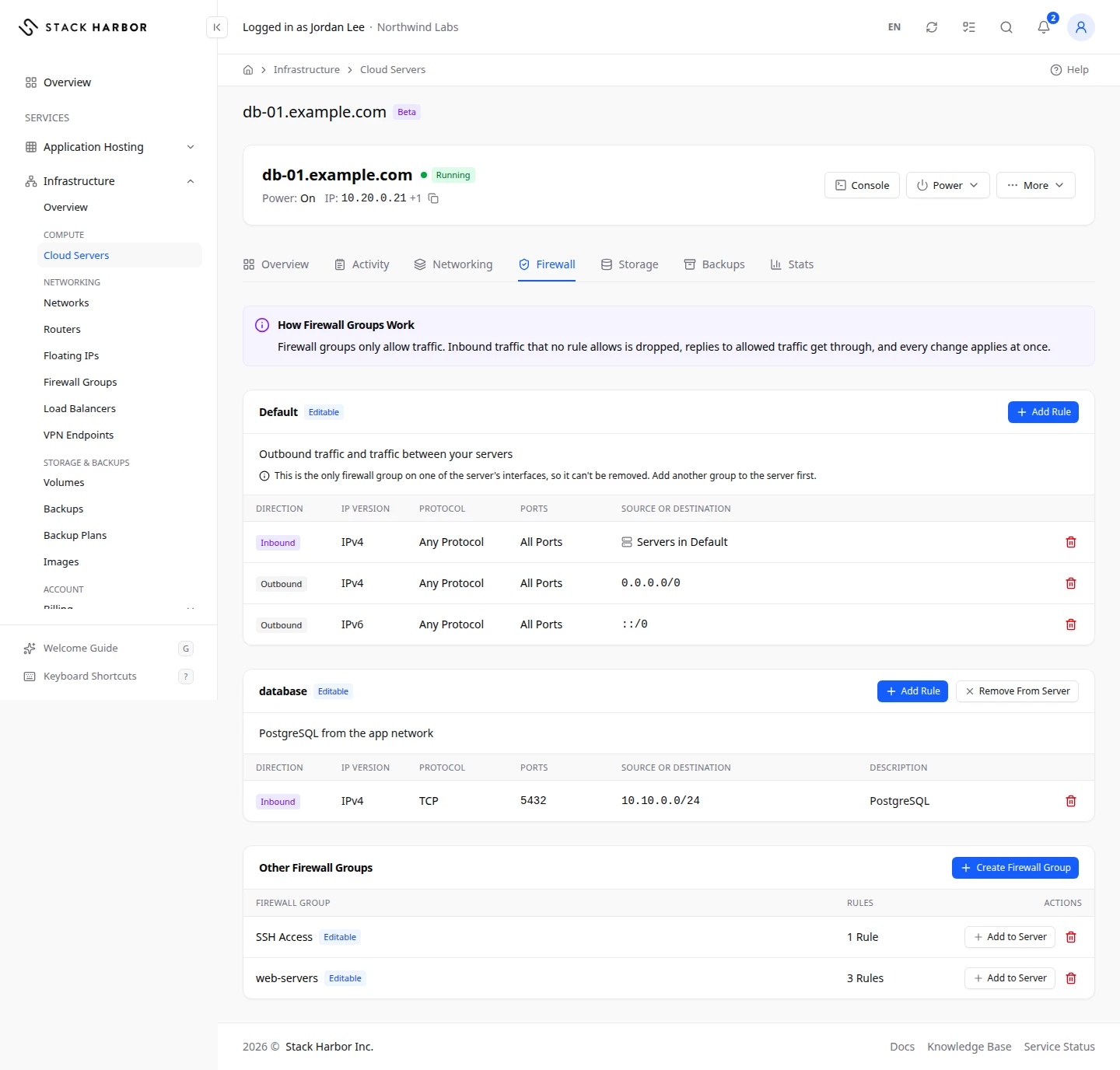
A warning Allows All Inbound means the group lets every inbound packet reach the server. Replace it with a group that allows only what you need.
Add a group to the server
- Under Other Firewall Groups, find the group.
- Select Add to Server and confirm. Its rules apply to every interface of the server at once.
Create a group from here
- Select Create Firewall Group.
- Type a Name, and a Description (Optional).
- Confirm. The new group allows outbound traffic and has no inbound rules. It appears under Other Firewall Groups.
- Add rules to it, then select Add to Server.
Add a rule
- On an editable group, select Add Rule.
- Choose the direction, the IP version and the protocol.
- For TCP or UDP, fill in the ports From and To, for example 443 and 443. Leave them empty for all ports.
- In Source (or Destination for outbound), type a CIDR such as 192.0.2.0/24. Leave it empty for anywhere.
- Confirm. You see Rule Added. The rule works at once.
To delete a rule, select Delete Rule on it and confirm. Traffic it allowed is dropped at once.
Make a shared group editable
A group shared by the project and not created in Lighthouse is Read Only. Make Editable makes a copy with the same rules that you can change, and puts it on this server in place of the original. Traffic stays the same until you change a rule. Other servers keep the original.
Remove or delete a group
- Remove From Server takes the group off this server. Traffic only that group allowed stops reaching the server at once.
- Delete Firewall Group deletes the group and its rules. A group still on a server can’t be deleted.
If something goes wrong
- This is the only firewall group on one of the server’s interfaces, so it can’t be removed. Add another group to the server first.
- Port security is off on this server’s network, so its firewall groups are not applied.
- That isn’t a CIDR of the chosen IP version. Check the address matches IPv4 or IPv6.
- Ports need TCP or UDP, from 1 to 65535, with the first no higher than the second.
Fields and statuses
What each item on this page means, what it does and how to read it.
- Network Column
-
What it is. The network this interface connects the server to.
- Addresses Column
-
What it is. The IP addresses on this interface.
- Firewall Groups Column
-
What it is. The firewall groups that filter traffic on this interface.
- Status Column
-
What it is. Whether the interface is up.
- Primary Status
-
What it is. This interface carries the server’s main address.
- Port Security Off Status
-
What it is. The network of this interface doesn’t apply firewall groups.
What it does. Traffic on it isn’t filtered.
How to read it. Ask support if you need filtering on this network.
- Address Column
-
What it is. One IP address of the server.
- Type Column
-
What it is. What kind of address it is, such as a fixed or floating address, IPv4 or IPv6.
- Subnet Column
-
What it is. The address range the address belongs to.
- Reverse DNS Column
-
What it is. The name returned when someone looks up this address.
What it does. Mail servers often check it. Edit PTR Record changes it.
- Floating IPv4 Field
-
What it is. The public IPv4 floating IP pointed at this server.
How to read it. Empty when the server has no floating IP.
- Floating IPv6 Field
-
What it is. The IPv6 floating IP pointed at this server.
- PTR Value Field
-
What it is. The full host name an address points back to, for example mail.example.com.
What it does. It sets the address’s reverse DNS.
How to read it. Use Server Hostname or Use Default Name fills it for you. Names under a Stack Harbor domain can’t be used.
- Saved, Not Live Yet Status
-
What it is. The reverse DNS change is saved but isn’t in DNS yet.
How to read it. Wait a few minutes.
- Reverse DNS Not Confirmed Status
-
What it is. The name doesn’t point back to this address.
How to read it. Add a matching A or AAAA record at your DNS provider.
- Firewall Group Column
-
What it is. A firewall group on this server.
What it does. Expand it to see its rules.
- Rules Column
-
What it is. How many rules the group has.
- Direction Column
-
What it is. Whether the rule is for traffic coming in or going out.
How to read it. Inbound or Outbound.
- Inbound Option
-
What it is. Traffic coming to the server.
What it does. Inbound traffic that no rule allows is dropped.
- Outbound Option
-
What it is. Traffic leaving the server.
- IP Version Column
-
What it is. Whether the rule is for IPv4 or IPv6.
- Protocol Column
-
What it is. The kind of traffic, such as TCP, UDP or ICMP.
- Ports Column
-
What it is. The port or range of ports the rule covers.
How to read it. Empty means all ports. Only TCP and UDP use ports.
- Source or Destination Column
-
What it is. Where the traffic comes from (inbound) or goes to (outbound).
How to read it. A CIDR such as 192.0.2.0/24, or anywhere when empty.
- Description Column
-
What it is. A note about what the rule is for.
- From Field
-
What it is. The first port of the range, from 1 to 65535.
How to read it. For one port, use the same number in From and To.
- To Field
-
What it is. The last port of the range, no lower than From.
- Source Field
-
What it is. For an inbound rule: the address range allowed in, as a CIDR.
How to read it. Empty means anywhere.
- Destination Field
-
What it is. For an outbound rule: the address range allowed out, as a CIDR.
How to read it. Empty means anywhere.
- Editable Status
-
What it is. The group was created in Lighthouse, so you can change its rules.
- Read Only Status
-
What it is. The group’s rules can’t be changed here.
What it does. You can still add it to a server or remove it.
How to read it. Make Editable makes a copy you can change.
- Other Firewall Groups Field
-
What it is. Your firewall groups that aren’t on this server.
What it does. Add to Server puts one on every interface of the server at once.