A backup plan backs up volumes automatically on a schedule and deletes the oldest backups as new ones arrive. The Backup Plans list shows every plan on the account. You create a plan from a server’s Backups tab, and it covers every volume of that server.
Create a plan
- Open the server’s page, then Backups and Backup Plans.
- Select Set Backup Plan and fill in the schedule. See Back up and restore servers and volumes for every field.
- Select Save Plan.
Read the list
- Open Infrastructure, then Backup Plans, under Storage & Backups.
- Each row shows Name, Status, Schedule, Keeps, Volumes and Last Run.
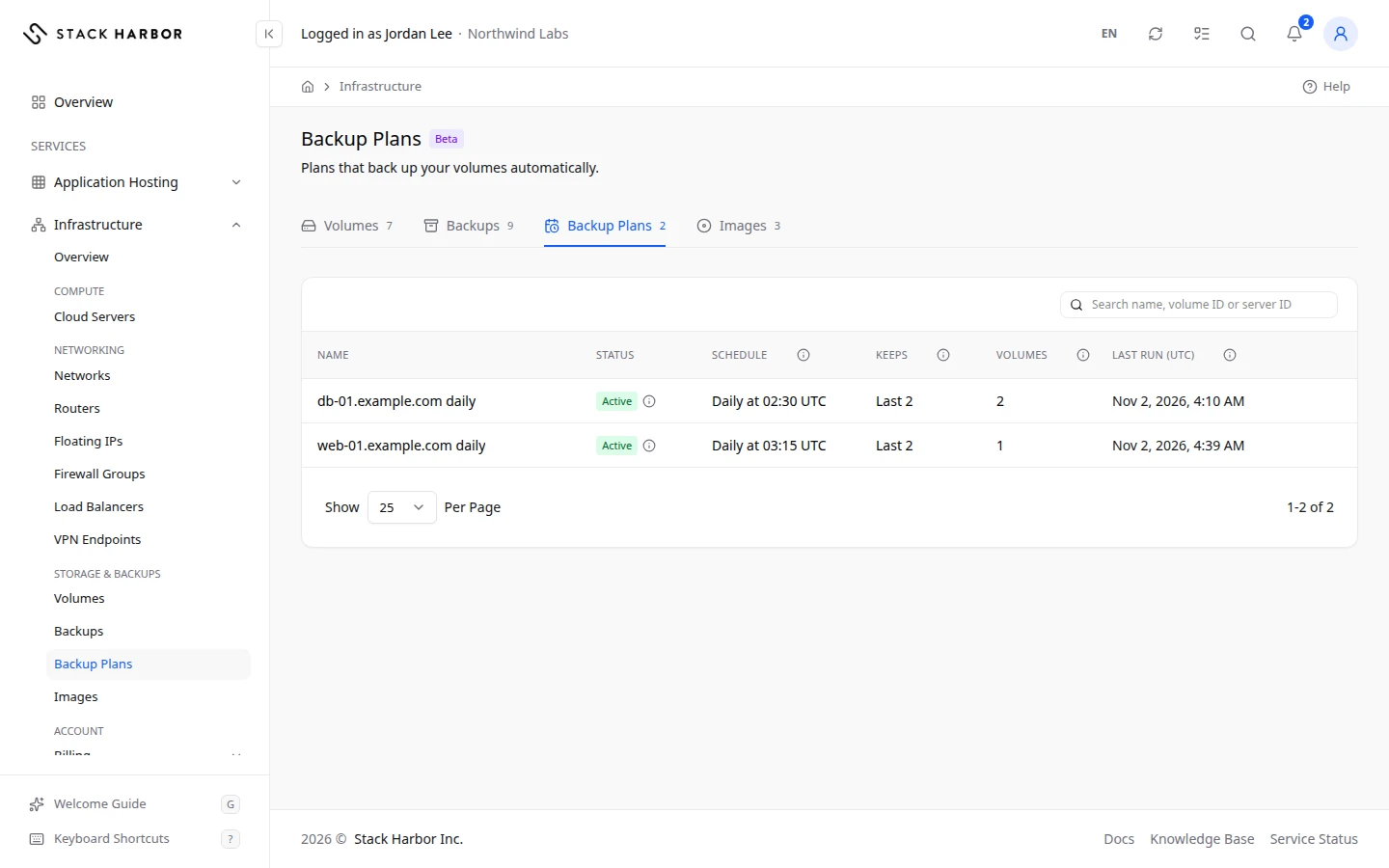
- Schedule says when it runs, for example Daily at 02:00 in your time zone.
- Keeps shows how many of the latest full backups are kept, for example Last 2. Hold the pointer over it for the full text, such as 2 Full Backups. Each full backup starts a chain with up to 6 incremental ones.
- Status is Active, Paused, Saving or Needs Attention.
- Last Run shows Succeeded, Failed, Running or Not Confirmed, or Not Yet before the first run.
The plan’s details page
Select a plan to open its Backup Plan Details page. It shows the plan’s properties, the volumes it covers and how its runs went, and it is where you change, pause or remove the plan. See Manage a backup plan.
If something goes wrong
- Backup Plans Couldn’t Be Read means we couldn’t load the plans right now. Your volumes and backups are unaffected. Select Try Again.
- Needs Attention means the plan is missing on the platform. Save the plan again from the server to recreate it.
- A plan made outside Lighthouse can be read here but not changed.
Fields and statuses
What each item on this page means, what it does and how to read it.
- Schedule Column
-
What it is. When the plan runs, for example Daily at 02:00.
How to read it. In your time zone.
- Keeps Column
-
What it is. How many of the latest full backups the plan keeps, shown as Last 2 (or another number).
How to read it. Hold the pointer over it to see the full text, for example 2 Full Backups. Each full backup starts a chain with up to 6 incremental ones.
- Volumes Column
-
What it is. How many volumes the plan covers.
- Last Run Column
-
What it is. How the last run went.
How to read it. Succeeded, Failed, Running or Not Confirmed, or Not Yet before the first run.
- Active Status
-
What it is. The plan runs on its schedule.
- Paused Status
-
What it is. The plan takes no new backups for now.
What it does. Backups already made are kept.
How to read it. Select Resume to start it again.
- Saving Status
-
What it is. The plan is being saved.
How to read it. Wait a moment.
- Needs Attention Status
-
What it is. The plan is missing on the platform.
How to read it. Save the plan again from the server to recreate it.
- Succeeded Status
-
What it is. The last run made its backups.
- Failed Status
-
What it is. The last run didn’t make its backups.
How to read it. Check the volumes still exist, then wait for the next run. Contact support if it fails again.
- Running Status
-
What it is. A run is in progress now.
- Not Confirmed Status
-
What it is. We couldn’t confirm how the last run went.
How to read it. Check the Backups list for new backups.
- Not Yet Status
-
What it is. The plan hasn’t run yet.
- No Volumes Status
-
What it is. No volumes are on this plan.
What it does. The plan still runs on its schedule, but it backs up nothing.
How to read it. Add a volume to the plan to start backing it up.
- Partly Failed: 1 of 2 Volumes Status
-
What it is. The last run backed up some of the plan’s volumes, but not all of them.
How to read it. The first number is the volumes backed up, the second is the volumes on the plan. Hold the pointer over it to see which volumes got no backup. Check those volumes, then wait for the next run. Contact support if it happens again.