Each license has its own page. It shows what the license is, how it is billed and what has happened to it.
Open a license
- In the side menu, select Licenses, then All Licenses.
- In the list, select the license, or its View License button.
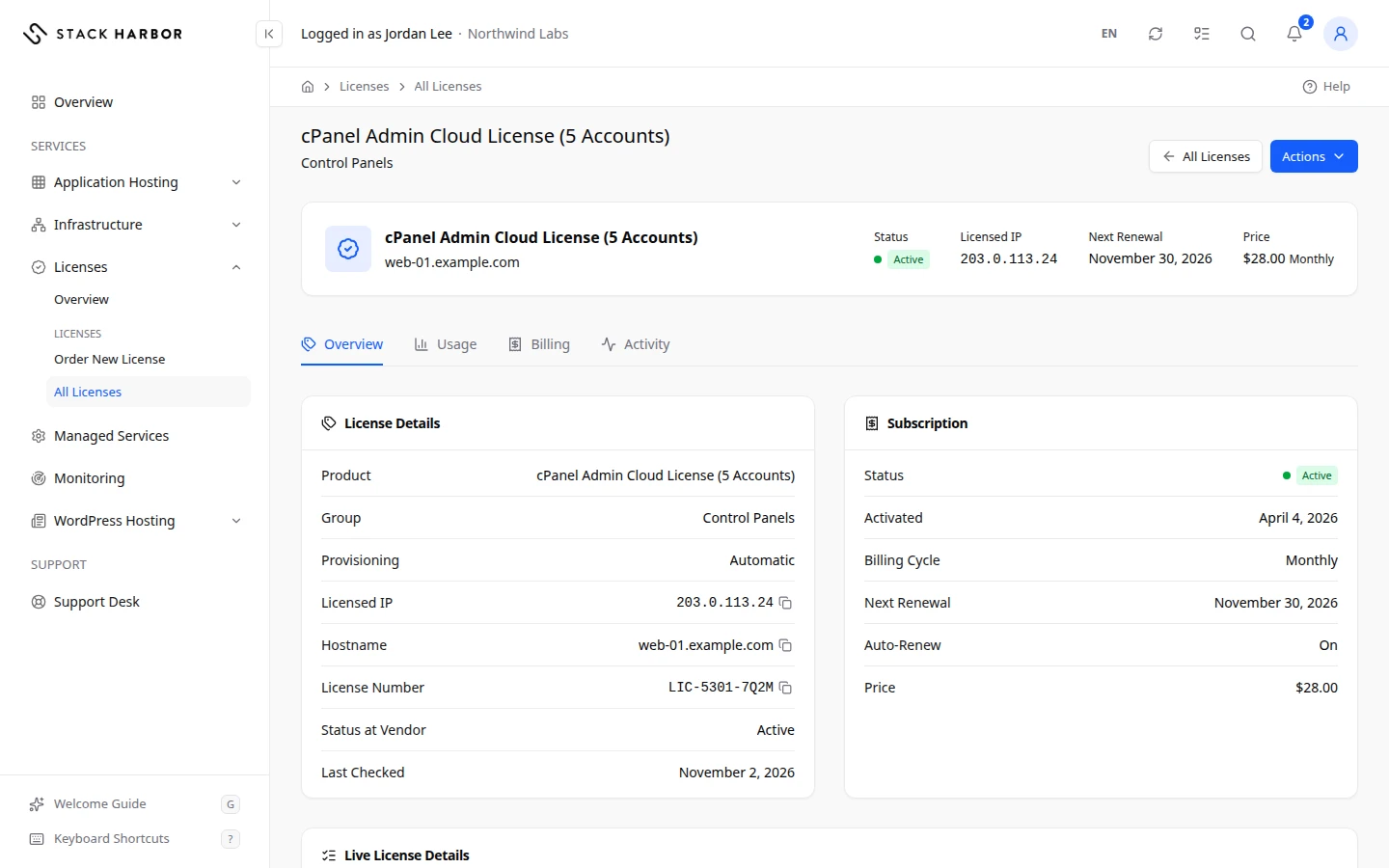
The top of the page shows the license name and the server hostname it is for, or No hostname on record. Next to them you see its Status, Licensed IP, Next Renewal and Price. The Actions menu holds Change IP, Open Support Ticket and Request Cancellation when they apply.
A coloured banner appears when the license needs your attention. For example, This license is suspended for an unpaid invoice comes with a button such as Pay Invoice #1042 for that invoice. The section on banners further down explains each one.
Overview
The Overview tab has up to three cards.
- License Details shows the Product, its Group, and Provisioning. Automatic means the license is issued and kept in step with the software vendor by our systems. Handled by Our Team means our team manages it by hand. The card also shows the Licensed IP and Hostname, which you can copy. For an automatic license it adds the License Number, the Status at Vendor and when we Last Checked it. It can also show the Edition and the Quantity.
- Subscription shows the Status, the date it was Activated, the Billing Cycle, the Next Renewal date, the Price and Auto-Renew (On or Off). After you ask to cancel, it shows Cancellation Requested For with the date.
- Live License Details lists what the software vendor reports right now. If the license has a key, the License Key row has a Reveal Key button. Each reveal is recorded in Activity. After a reveal, use Hide Key and Show Key to toggle it.
Usage
The Usage tab appears for control panel licenses billed by the number of accounts on the server.
- Accounts in Use is the latest count, with the date it was taken.
- Included in Your Tier is how many accounts your license tier covers.
- Billable Above the Tier is how many accounts are over that number, and the price of each one. You see the price only with the Access Billing permission.
- Accounts Over Time charts the daily count. Choose a period of 30, 90 or 365 days. The dashed line marks the included number.
No Usage Recorded means no count exists yet. For a fixed-tier license, your control panel shows how many accounts are in use.
Billing
The Billing tab lists the Invoices that include this license, newest first. Each row shows the Invoice number, its Date, when it is Due, its Status, the amount for This Service, the Balance Due and the Invoice Total. Select View Invoice to open it and pay. Each invoice is shown in its own currency. The tab appears only with the Access Billing permission.
Activity
The Activity tab lists what has happened to the license, newest first. Each row shows the Date, the Event, who did it (By) and the Result. Events include License Set Up, IP Change Requested, Licensed IP Changed, Cancellation Requested, License Key Revealed, License Suspended and License Unsuspended.
Ask for a new licensed IP
This option appears for an active automatic license when you have the permission to manage licenses.
- Open the Actions menu and select Change IP.
- In New IP Address, enter the server’s new public IPv4 address, for example 203.0.113.10. The dialog shows the Current IP above it.
- Optional: add a Note for Our Team, such as when to make the change.
- Select Send Request.
You see IP change requested and the number of the request we opened. The license keeps its current IP until our team confirms the change. You can ask for one change per day.
Ask to cancel a license
- Open the Actions menu and select Request Cancellation.
- In Why Are You Cancelling?, give a short reason.
- Select Request Cancellation. To keep the license, select Keep License.
We cancel the license at the end of its current billing period, never at once. The license keeps working until then, and its status shows Cancellation Requested. To cancel sooner, open a support ticket.
What the banners mean
- This license is being set up means our team is still preparing it. Its details appear once it is active.
- This license is suspended for an unpaid invoice means a payment is overdue. Pay the invoice to restore the license. Without billing access, ask your account’s billing contact to pay it.
- This license is suspended for another reason means you should contact support to find out why.
- The vendor reports this license as expired or The vendor reports this license as suspended means our records say the license is active, but the software vendor disagrees. If your server shows license errors, open a support ticket and we will fix it.
- Cancellation requested means the license ends at the end of the billing period. To keep it, open a support ticket before then.
- This license has ended. means it was terminated or cancelled.
If something goes wrong
- Too many reveals in the last hour. Try again later. means you have revealed the key too often. Wait, then try again.
- On file. Viewing it needs the View License Keys permission. means the key exists but your role can’t see it. Ask your account owner.
- Our team manages this license’s IP. Open a support ticket to change it. means the license is handled by our team. Use Open Support Ticket.
- If the dialog says you have already sent this request recently, you sent the same request less than a day ago. Wait the number of hours it gives, then try again.
Fields and statuses
What each item on this page means, what it does and how to read it.
- Product Field
-
What it is. The licensed product.
- Provisioning Field
-
What it is. How the license is issued and kept up to date.
How to read it. Automatic or Handled by Our Team.
- Hostname Field
-
What it is. The hostname of the server the license is for.
How to read it. You can copy it.
- License Number Field
-
What it is. The software vendor’s reference for this license.
How to read it. Shown for automatic licenses once linked to the vendor. You can copy it.
- Status at Vendor Field
-
What it is. The license’s state in the software vendor’s own records.
How to read it. Active, Expired or Suspended. If it differs from our status, a banner says so.
- Last Checked Field
-
What it is. When we last read the license’s record at the vendor.
How to read it. If it is old, the status at the vendor may be out of date.
- Edition Field
-
What it is. The product edition, such as a tier or version.
- Quantity Field
-
What it is. How many units the license covers, such as cores or seats.
- Activated Field
-
What it is. The date the license started.
- Billing Cycle Field
-
What it is. How often the license is billed.
- Auto-Renew Field
-
What it is. Whether the license renews by itself at the end of each billing cycle.
How to read it. On or Off.
- Cancellation Requested For Field
-
What it is. The date a requested cancellation takes effect.
How to read it. It is the end of the current billing period.
- License Key Field
-
What it is. The key or serial the software needs to activate.
How to read it. Hidden until you select Reveal Key. Each reveal is recorded in Activity.
- Automatic Option
-
What it is. Our systems issue the license and keep it in step with the software vendor.
- Handled by Our Team Option
-
What it is. Our team issues and manages the license by hand.
How to read it. IP changes go through a support ticket.
- On Option
-
What it is. The license renews by itself.
- Off Option
-
What it is. The license doesn’t renew by itself.
- Active Status
-
What it is. The vendor reports the license as working.
How to read it. Shown in Status at Vendor.
- Expired Status
-
What it is. The vendor reports the license as expired.
How to read it. Shown in Status at Vendor.
- Suspended Status
-
What it is. The vendor reports the license as suspended.
How to read it. Shown in Status at Vendor.
- Free Option
-
What it is. No charge.
- One Time Option
-
What it is. Billed once.
- Monthly Option
-
What it is. Billed every month.
- Quarterly Option
-
What it is. Billed every three months.
- Semi-Annually Option
-
What it is. Billed every six months.
- Annually Option
-
What it is. Billed every year.
- Biennially Option
-
What it is. Billed every two years.
- Triennially Option
-
What it is. Billed every three years.
- Accounts in Use Metric
-
What it is. The latest count of accounts hosted on the licensed server, with the date it was taken.
How to read it. A whole number. Compare it with Included in Your Tier.
- Included in Your Tier Metric
-
What it is. How many accounts your license tier covers at no extra cost.
How to read it. Accounts in Use at or below this number cost nothing extra.
- Billable Above the Tier Metric
-
What it is. How many accounts are over the tier, and the price of each extra one.
What it does. Extra accounts are added to your invoice.
How to read it. The price per account shows only with the Access Billing permission. A dash means no count yet.
- Accounts Over Time Metric
-
What it is. A chart of the daily account count over 30, 90 or 365 days.
How to read it. The dashed line marks the included number. Points above it are billable.
- Invoice Column
-
What it is. The invoice number.
How to read it. In the invoice’s own currency.
- Date Column
-
What it is. The date the invoice was issued.
How to read it. In the invoice’s own currency.
- Due Column
-
What it is. The date payment is due.
How to read it. In the invoice’s own currency.
- This Service Column
-
What it is. The amount on the invoice for this license only.
How to read it. In the invoice’s own currency.
- Balance Due Column
-
What it is. What is still unpaid on the whole invoice.
How to read it. In the invoice’s own currency.
- Invoice Total Column
-
What it is. The total of the whole invoice, which can include other services.
How to read it. In the invoice’s own currency.
- Date Column
-
What it is. When the event happened.
- Event Column
-
What it is. What happened to the license.
- By Column
-
What it is. Who did it.
- Result Column
-
What it is. Whether it worked: Success or Failed.
- Account Owner Option
-
What it is. The account owner.
- Team Member Option
-
What it is. A team member of your account.
- Stack Harbor Support Option
-
What it is. Our support team.
- Stack Harbor Option
-
What it is. An automatic action by our systems.
- License Requested Status
-
What it is. The license was requested.
How to read it. An event in the Activity tab.
- License Set Up Status
-
What it is. The license was set up.
How to read it. An event in the Activity tab.
- IP Change Requested Status
-
What it is. Someone asked to move the license to a new IP.
How to read it. An event in the Activity tab.
- Licensed IP Changed Status
-
What it is. The licensed IP was changed.
How to read it. An event in the Activity tab.
- Cancellation Requested Status
-
What it is. Someone asked to cancel the license.
How to read it. An event in the Activity tab.
- License Key Revealed Status
-
What it is. Someone revealed the license key.
How to read it. An event in the Activity tab.
- License Suspended Status
-
What it is. The license was suspended.
How to read it. An event in the Activity tab.
- License Unsuspended Status
-
What it is. The license was restored after a suspension.
How to read it. An event in the Activity tab.
- License Terminated Status
-
What it is. The license was ended.
How to read it. An event in the Activity tab.
- Plan Changed Status
-
What it is. The license’s plan or tier changed.
How to read it. An event in the Activity tab.
- Password Changed Status
-
What it is. The license’s password was changed.
How to read it. An event in the Activity tab.
- Current IP Field
-
What it is. The IP the license is tied to now.
- New IP Address Field
-
What it is. The public IPv4 address to move the license to, for example 203.0.113.10.
What it does. Opens a request for our team. The license keeps its current IP until we confirm.
How to read it. Must be public and different from the current IP. One change per day.
- Note for Our Team Field
-
What it is. Anything we should know, such as when to make the change.
What it does. Goes to our team with the request.
How to read it. Optional, under 1,000 characters.
- Why Are You Cancelling? Field
-
What it is. Why you want to cancel the license.
What it does. Goes to our team with the cancellation request.
How to read it. Required, under 1,000 characters. We cancel at the end of the billing period.