Each VPN endpoint has its own page. You add its connections there, copy the settings for the device at the other site, and see whether each tunnel is up. VPN endpoints are in beta. To create one, see Create a VPN endpoint.
Open a VPN endpoint
- In the side menu, open Infrastructure, then select VPN Endpoints under Networking.
- Select the endpoint’s name. The VPN Endpoint page opens.
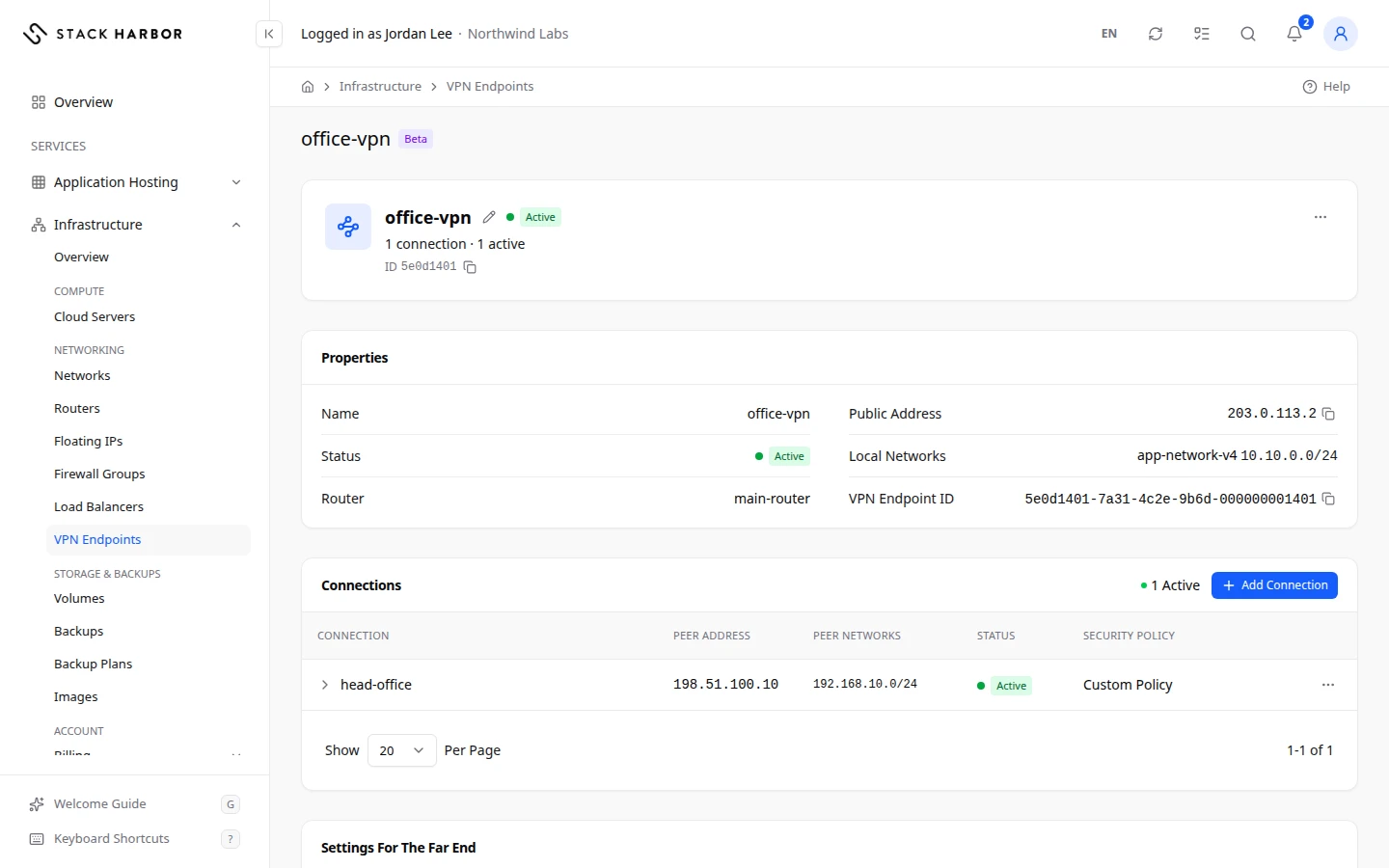
The top card shows its name, status and a summary, for example 2 connections · 1 active.
Read the properties
Properties lists the Name, Status, Router, Public Address, Local Networks and VPN Endpoint ID.
- Public Address is the router gateway’s address. The far end connects to it.
- Local Networks are your private networks that the far end can reach.
The status can be:
- Active: the tunnel is up and passes traffic.
- Pending: it is being set up, or waits for the far end.
- Down: the far end doesn’t answer.
- Error: the platform couldn’t set it up.
Read the connections
Connections lists each tunnel with its Connection name, Peer Address, Peer Networks, Security Policy and Status. Select a connection to see its settings in three groups: IKE (Phase 1), IPsec (Phase 2) and Tunnel.
A new connection stays Pending or Down until the device at the far end answers. That’s expected, not a fault.
Add a connection
- Select Add Connection.
- Fill in Connection Name, Peer Address, Peer Networks, Pre-Shared Key and Security Policy. Optionally, fill in Peer ID (Optional) and the Advanced Settings. Each field is explained in Create a VPN endpoint.
- Select Add Connection.
You see Adding the connection., then a card such as toronto-office Was Added that reminds you to set up the far end. Select Dismiss to close it.
Set up the far end
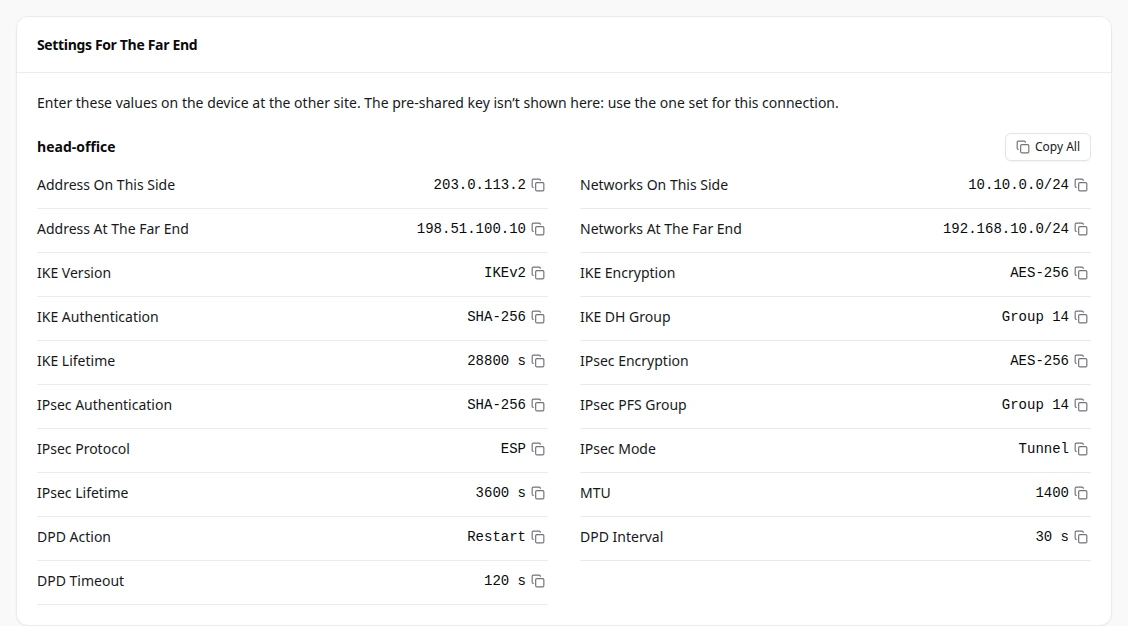
Settings For The Far End lists every value to enter on the device at the other site, connection by connection. They include the address and networks on this side, the IKE and IPsec settings and the tunnel settings.
- Select Copy All to copy every value, or copy one value at a time.
- Enter them on the device at the other site, with the same pre-shared key. The pre-shared key isn’t shown here.
Edit a connection
- Open the connection’s actions and select Edit Connection.
- Change what you need. Leave New Pre-Shared Key (Optional) blank to keep the current key. A new key must also be set at the far end.
- Select Save. You see Connection updated.
The security policy is fixed after creation. To change it, delete the connection and add it again. A connection can’t be changed while it’s pending.
Delete a connection
- Open the connection’s actions and select Delete Connection.
- Confirm. The tunnel to that site stops. This can’t be undone.
Rename or delete the VPN endpoint
- Rename VPN Endpoint changes its name. Select Save. You see VPN endpoint renamed.
- Delete VPN Endpoint removes it with all its connections. Type its name to confirm, for example
office-vpn. You see Deleting office-vpn., then office-vpn is deleted. Tunnels to other sites stop, and this can’t be undone.
If something goes wrong
- A connection stays Down: check that the device at the other site is on and that its settings match the ones on this page.
- A connection in Error: delete it and add it again, or contact support.
- This VPN endpoint is busy with another change. Try again in a moment.
- For your security, the key was cleared after sending. Enter it again before you try again.
- If the page says the endpoint, or your account, has reached its limit of connections, delete a connection you don’t use. To raise the account limit, open a support ticket.
- You don’t have permission to manage VPN endpoints. Your account owner can give you access.
- VPN Endpoint Not Found means it was deleted, or the link is wrong. Go back to the list.
- Changes Are Switched Off means changes are paused for now. You can still read everything.
Fields and statuses
What each item on this page means, what it does and how to read it.
- Active Status
-
What it is. The tunnel is up and passes traffic.
- Pending Status
-
What it is. The endpoint or connection is being set up, or waits for the far end.
How to read it. That’s expected until the far-end device answers.
- Down Status
-
What it is. The far end doesn’t answer.
How to read it. Check the device at the other site is on and its settings match the ones on this page.
- Error Status
-
What it is. The platform couldn’t set it up.
How to read it. Delete the connection and add it again, or contact support.
- New Pre-Shared Key (Optional) Field
-
What it is. A new shared key for the connection.
What it does. A new key must also be set at the far end.
How to read it. Leave it blank to keep the current key.
- Public Address Field
-
What it is. The router gateway’s public address.
How to read it. The device at the far end connects to it.
- VPN Endpoint ID Field
-
What it is. The VPN endpoint’s unique identifier.
How to read it. Give it to support when you ask about this endpoint.
- Connection Column
-
What it is. The name of the tunnel.
What it does. Selecting the row shows its IKE, IPsec and tunnel settings.
- Peer Address Column
-
What it is. The public address or host name of the device at the far end.
- Peer Networks Column
-
What it is. The networks behind the far-end device.
- Security Policy Column
-
What it is. The encryption both ends use.
How to read it. Fixed after creation.
- Status Column
-
What it is. Whether the tunnel is up.
How to read it. Pending or Down until the far end answers, which is expected for a new connection.
- IKE (Phase 1) Field
-
What it is. The first phase of the tunnel, where both ends prove who they are and agree on keys.
How to read it. Values to copy to the far-end device.
- IPsec (Phase 2) Field
-
What it is. The second phase, which encrypts the traffic itself.
How to read it. Values to copy to the far-end device.
- Tunnel Field
-
What it is. The tunnel settings, such as the MTU and dead peer detection.
- Settings For The Far End Field
-
What it is. Every value to enter on the device at the other site, connection by connection.
What it does. Copy All copies every value.
How to read it. The pre-shared key isn’t shown. Use the one set for this connection.
- Add Connection Field
-
What it is. Adds a tunnel to another site.
What it does. Opens the form for the connection’s settings.
How to read it. The new connection stays Pending or Down until the far end answers.
- Edit Connection Field
-
What it is. Changes a connection’s settings, except its security policy.
What it does. Leave the new key blank to keep the current one.
How to read it. Not available while the connection is pending.
- Delete Connection Field
-
What it is. Removes one tunnel.
What it does. The tunnel to that site stops. This can’t be undone.
- Rename VPN Endpoint Field
-
What it is. Changes the VPN endpoint’s name.
- Delete VPN Endpoint Field
-
What it is. Deletes the VPN endpoint with all its connections.
What it does. Tunnels to other sites stop. You type its name to confirm. This can’t be undone.
- VPN Endpoint Not Found Status
-
What it is. There is no VPN endpoint at this address.
How to read it. It may have been deleted. Go back to the list.